Mastering Custom Fields in Shelf: Complete Guide to Asset Information Customization
An overview of field types that can be used as custom fields in Shelf, enabling organizations to customize their asset management systems to match specific workflow requirements.

Custom fields serve as foundational elements in Shelf, enabling organizations to customize their asset management systems to match specific workflow requirements. Whether managing IT equipment, vehicles, laboratory instruments, or other assets, custom fields allow teams to capture essential organizational information.
Understanding Custom Fields
Custom fields in Shelf provide intelligent, contextual additions that:
- Enforce data quality through required field validation
- Streamline workflows with category-specific field mapping
- Maintain consistency across teams and processes
- Provide guidance through contextual help text
- Support complex filtering for advanced asset searches
- Enable rich reporting through structured data export
Available Field Types
Single-line Text
Ideal for concise, searchable, and comparable information.
Best for:
- Serial numbers and model identifiers
- Supplier codes and part numbers
- Location codes and asset tags
- Simple classification labels
Example: Asset Tag: "NYC-LAB-001"
Multi-line Text
Supports rich formatting and detailed information entry.
Best for:
- Maintenance instructions and procedures
- Asset history and incident reports
- Technical specifications and configurations
- Usage guidelines and safety notes
Date
Intuitive calendar picker with consistent date formatting.
Best for:
- Purchase and warranty dates
- Maintenance schedules and calibration due dates
- Lease expiration and renewal dates
- Compliance deadlines and audit dates
Example: Next Calibration Date: 2024-06-15
Option
Dropdown menu with predefined choices ensuring data consistency.
Best for:
- Status indicators (Excellent, Good, Fair, Poor)
- Department or team assignments
- Compliance levels and certifications
- Equipment conditions and ratings
Example: Condition dropdown with options: New, Good, Fair, Needs Repair, Retired
Boolean
Simple yes/no toggle for binary decisions and status tracking.
Best for:
- Warranty status (covered/expired)
- Compliance flags (compliant/non-compliant)
- Feature availability (available/unavailable)
- Safety certifications (certified/not certified)
Example: Under Warranty: Yes/No toggle
Amount (Currency)
Specifically designed for monetary values with automatic currency formatting.
Key Features:
- Automatically formats with your organization's currency symbol
- Only accepts positive values (perfect for costs, prices, budgets)
- Exports with proper currency formatting ($1,234.56)
- Advanced filtering with currency-aware comparisons
Best for:
- Purchase prices and current valuations
- Maintenance costs and budget allocations
- Insurance values and replacement costs
- Lease payments and rental fees
Example: Purchase Price: $2,499.99 (displays with currency symbol)
Number
Flexible numeric field handling any numeric data including negatives.
Key Features:
- Accepts positive and negative values
- Precise decimal handling for measurements
- Advanced filtering with flexible range queries
- Plain number export (no formatting symbols)
Best for:
- Temperature ratings and environmental specs
- Measurement values and tolerances
- Quantity counts and inventory levels
- Performance metrics and scores
- Coordinates and technical measurements
Advanced Custom Field Features
Smart Filtering
- Amount fields: Filter by currency ranges with validation
- Number fields: Support complex ranges including negative values
- Text fields: Full-text search and pattern matching
- Date fields: Calendar-based range selection
- Boolean fields: Quick yes/no filtering
Import and Export Intelligence
- CSV Import: Auto-detection of field types with validation
- Export Formatting: Currency fields export with symbols, numbers export plain
- Template Generation: Download pre-configured CSV templates
- Data Validation: Import validation prevents data corruption
Category-Specific Mapping
Create tailored forms for different asset types:
- IT Equipment: Serial numbers, warranty dates, software licenses
- Vehicles: Mileage, insurance expiration, maintenance schedules
- Lab Equipment: Calibration dates, accuracy specs, compliance certificates
- Furniture: Dimensions, materials, purchase information
Setting Up Custom Fields
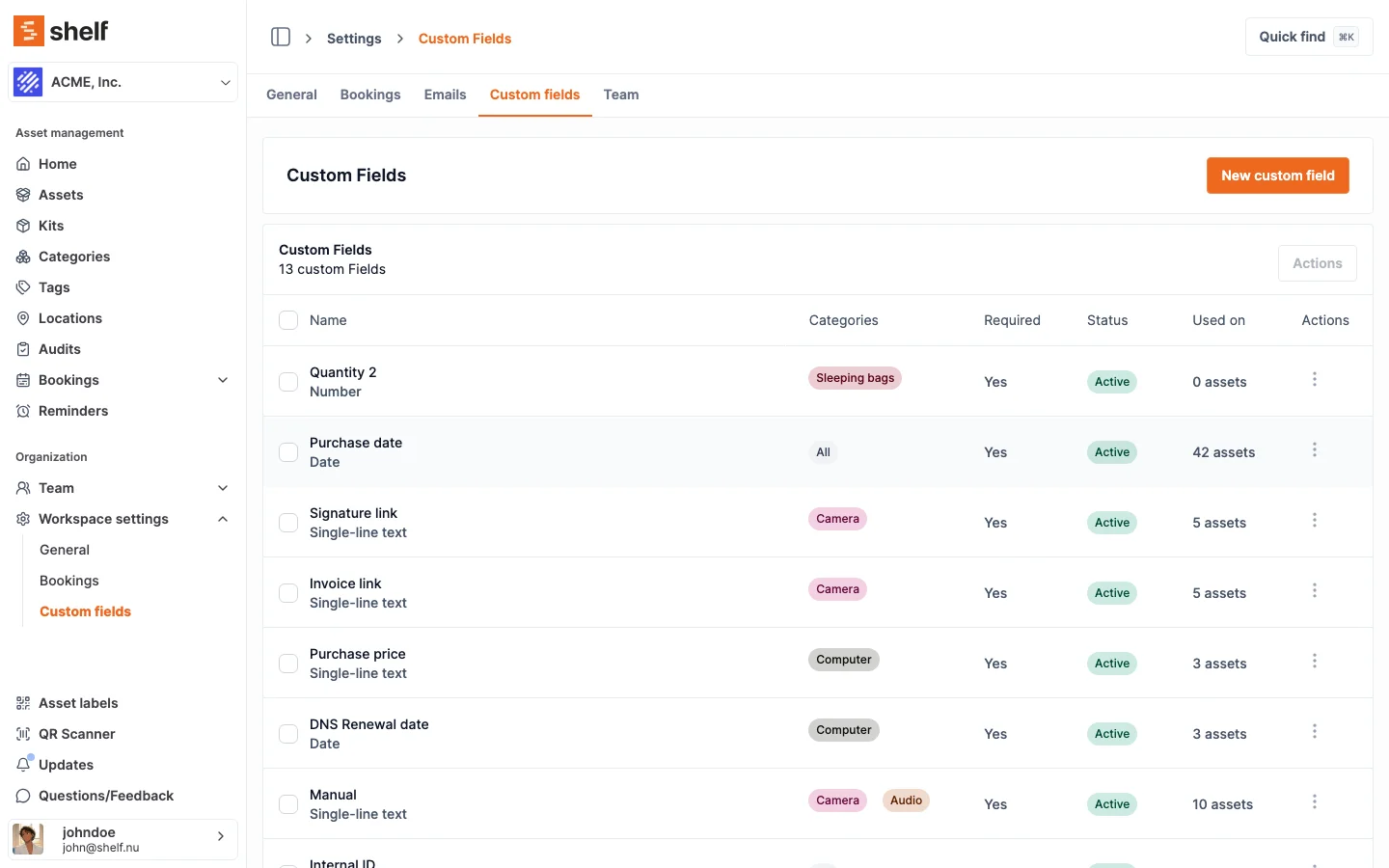
- Navigate to Settings > Custom Fields
- Design your field:
- Choose a clear, descriptive name
- Select the most appropriate field type
- Write helpful placeholder text
- Add guidance in the help text field
- Configure requirements:
- Set as required for critical information
- Map to specific asset categories when needed
- Set active status for immediate use
- Test and refine:
- Create a test asset to verify field behavior
- Adjust settings based on user feedback
- Monitor data quality and consistency
Best Practices for Custom Fields
Field Design Principles
- Start essential, expand gradually: Begin with must-have fields and add more as workflows mature
- Use consistent naming: Establish clear conventions (e.g., "Purchase Date" vs "Date Purchased")
- Choose types thoughtfully: Amount vs Number makes a big difference in usage
- Provide clear help text: Guide users on format and expectations
Data Quality Management
- Make critical fields required: Ensure completeness for essential information
- Use Option fields for standardization: Prevent inconsistent entries
- Regular review cycles: Periodically assess which fields are actually used
- Category mapping strategy: Balance specificity with simplicity
Performance Optimization
- Limit initial visible fields: Too many fields overwhelm users
- Strategic required fields: Only require truly essential information
- Meaningful field grouping: Use categories to organize related fields
- Regular cleanup: Deactivate unused fields rather than deleting
Working with Custom Fields Data
Advanced Filtering
Custom fields unlock powerful search capabilities:
- Combine multiple field filters for precise asset queries
- Use amount fields for budget-based filtering
- Leverage number fields for specification-based searches
- Create saved filter combinations for repeated use
Reporting and Export
- Export custom field data with proper formatting
- Amount fields automatically include currency symbols
- Number fields maintain precision for technical data
- Date fields export in standard formats for analysis
Data Import Strategies
- Use provided CSV templates to ensure proper formatting
- Amount fields: Enter numbers without currency symbols (1234.56)
- Number fields: Include negative values when needed (-40)
- Test imports with small batches before full deployment
Integration with Workflows
Custom fields integrate seamlessly with Shelf's core features:
- QR Code Labels: Include custom field data on printed labels
- Mobile Scanning: View and edit custom fields via mobile devices
- Booking System: Custom fields help identify the right assets for bookings
- Maintenance Tracking: Date fields drive proactive maintenance scheduling
Custom fields transform Shelf from a generic tool into your organization's perfect asset management solution. The key is thoughtful implementation that grows with your needs while maintaining data quality and user experience.
Ready to try Shelf?
Put what you're learning into practice. Free plan available — no credit card required.