

How to Reset Your Password in Shelf
A guide to resetting your password in Shelf, whether you are already logged in or have forgotten your password.
Keeping your account secure is essential when managing your asset inventory. This guide will walk you through the process of resetting your password in Shelf.
Method 1: Reset from Account Settings (When Already Logged In)
If you're already logged into your Shelf account and want to change your password:
- Navigate to app.shelf.nu
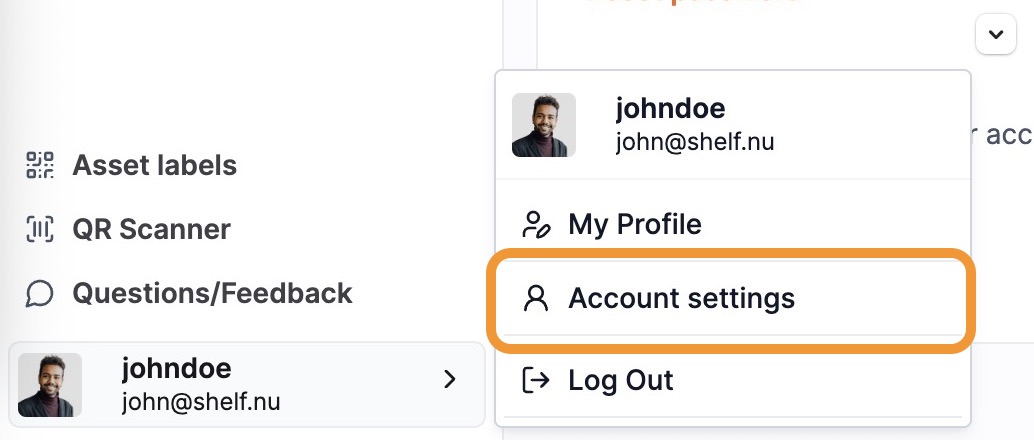
- Click on your user profile picture in the bottom left corner of the sidebar
- From the dropdown menu, select Account settings
- On the account details page, scroll down to the Password section
- Click the "Reset password" button
- This will log you out and trigger the password reset flow
Method 2: Reset from Login Page (When Logged Out)
If you've forgotten your password and cannot log in:
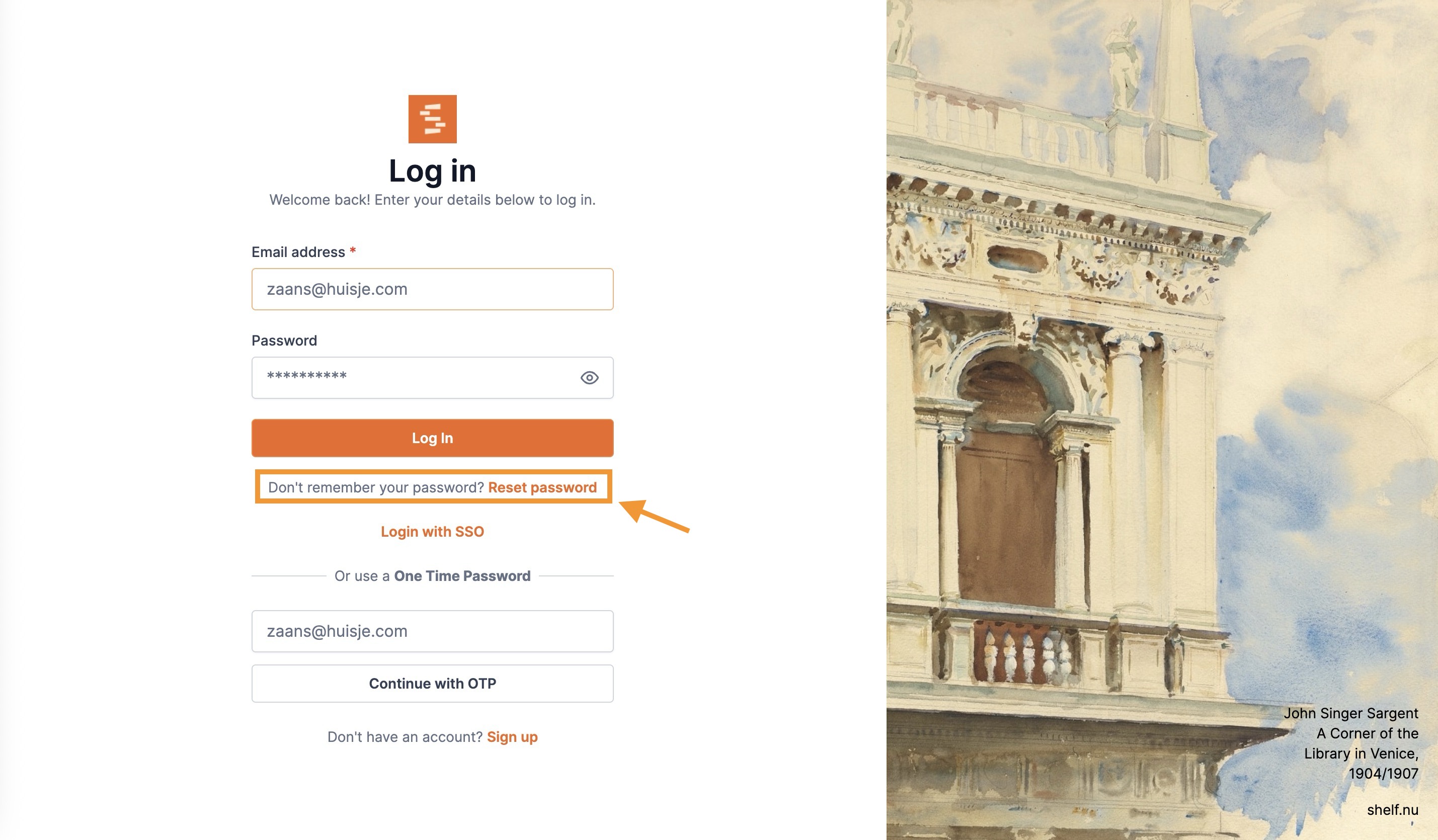
- Go to the Shelf login page
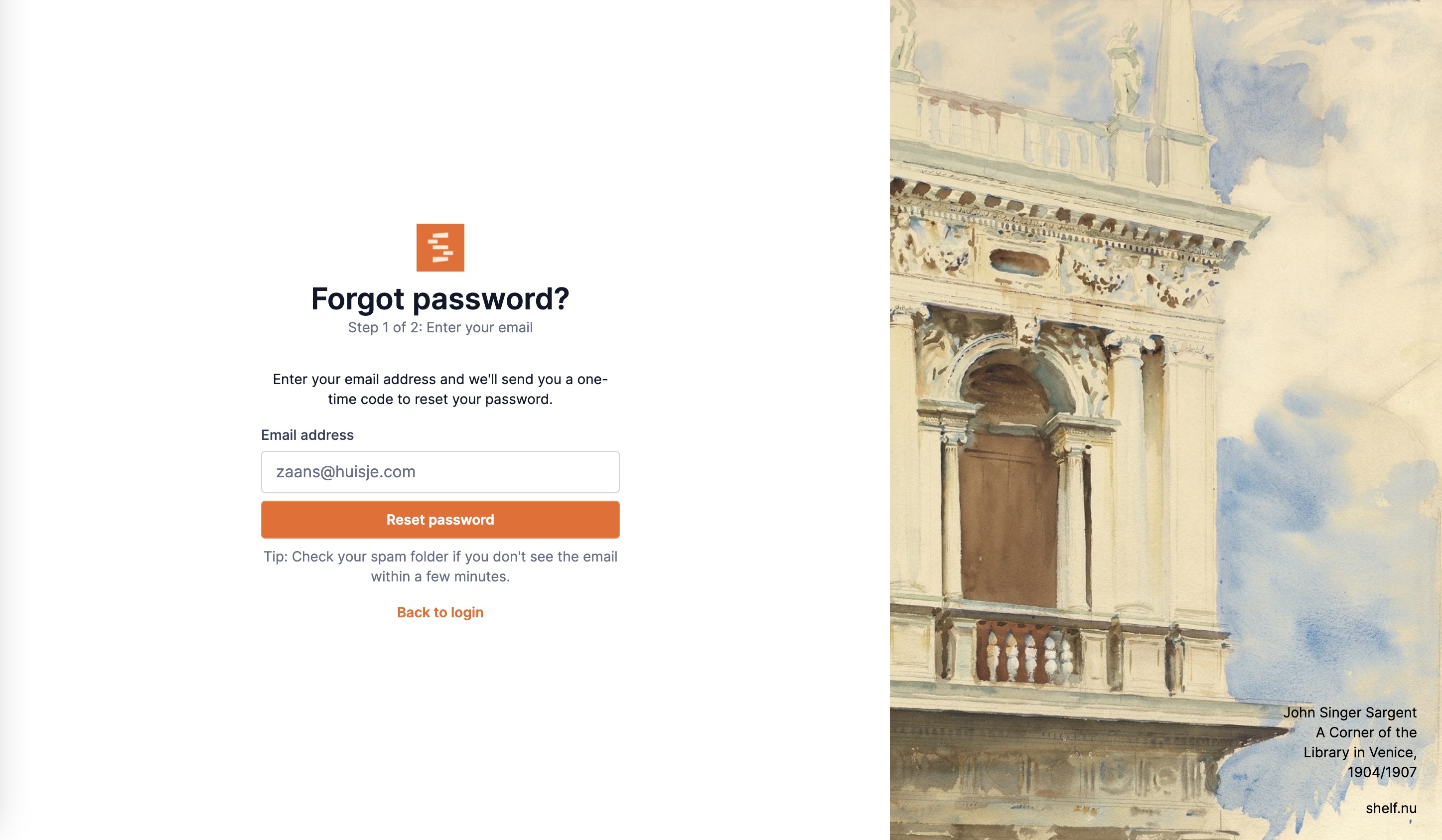
- Click the "Forgot password?" link
- Enter your email address associated with your Shelf account
- Click "Reset password"
- Check your email inbox for a one-time code (also check spam/junk folders if not found)
- Enter the code to set your new password
Important Notes
- Password reset emails are typically delivered within a few minutes
- Make sure to create a strong, unique password
- If you don't receive the password reset email, check your spam folder
- For security reasons, password reset links expire after a short period
Related Articles
- How to log in to the Shelf application
- User types / roles and their permissions
- How to change your email address
- Add the Shelf App to your Dock Taskbar or Homescreen
- How to get in touch with Support
If you continue to experience issues with resetting your password, please contact our support team for assistance.
Ready to try Shelf?
Put what you're learning into practice. Free plan available — no credit card required.