

Add the Shelf App to your Dock, Taskbar, or Homescreen
A guide explaining how to add the Shelf application to your device's dock, taskbar, or homescreen across different platforms and operating systems.
Several methods exist for accessing Shelf more conveniently across various devices and operating systems.
Chrome (Windows)
Windows devices like desktop PCs and Surface tablets support adding Progressive Web Apps to the taskbar.
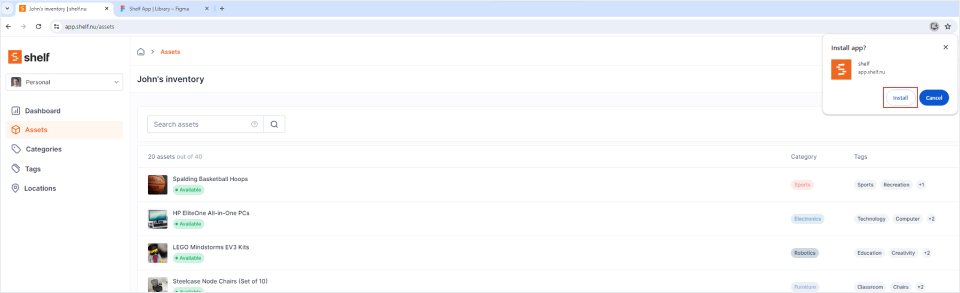
- Ensure you're logged into your Shelf account
- Select the Install icon in the address bar (right side)
- Click Install to add Shelf to your taskbar
Safari (macOS)
macOS devices including MacBooks and iMacs can add PWAs to the dock. This functionality currently requires macOS Sonoma.
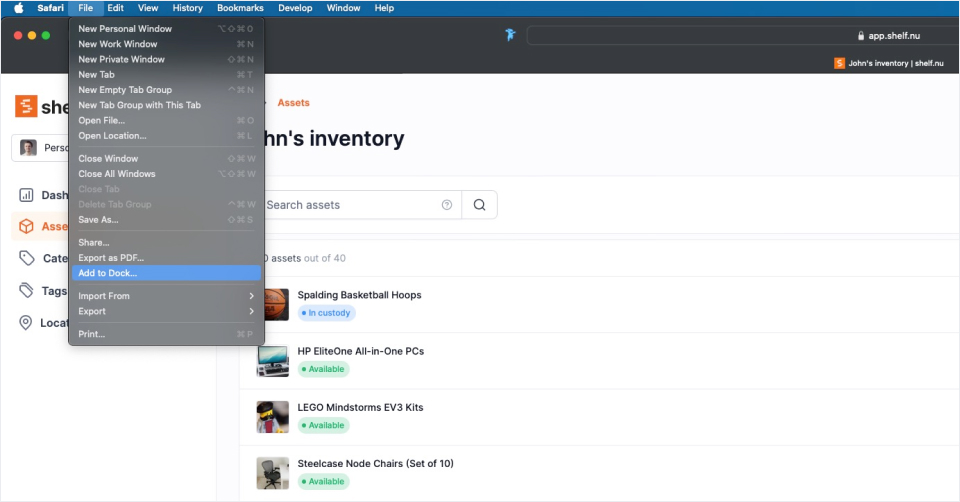
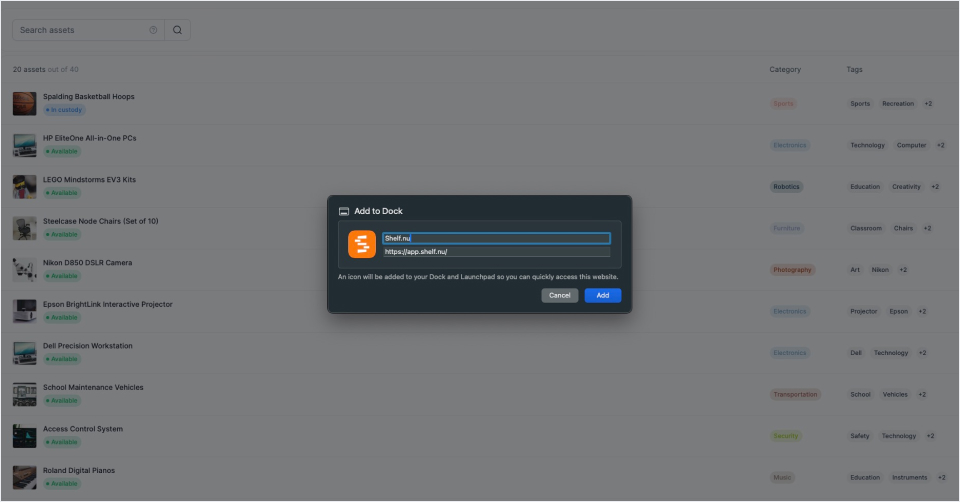

- Log in with your Shelf account
- Select File > Add to dock...
- Choose Add after naming the app
- Shelf now appears in your dock
Chrome (macOS)
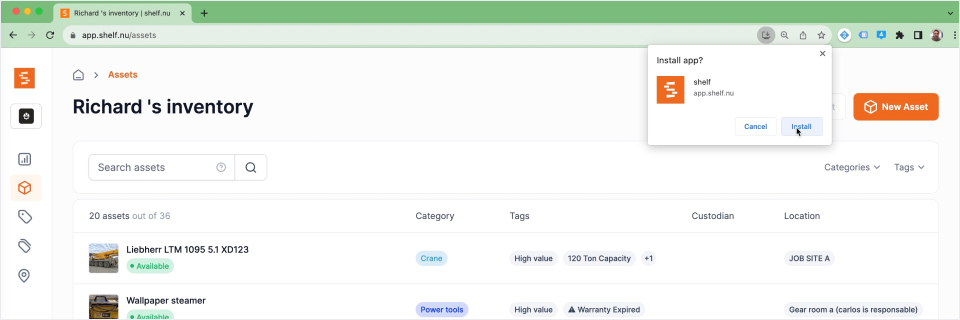
- Log in with your Shelf account
- Click the Install app icon in the address bar
- Click the Install button
- The app is added to your dock
Safari (iOS + iPadOS)
iPhone and iPad users can add PWAs to their Home Screen.
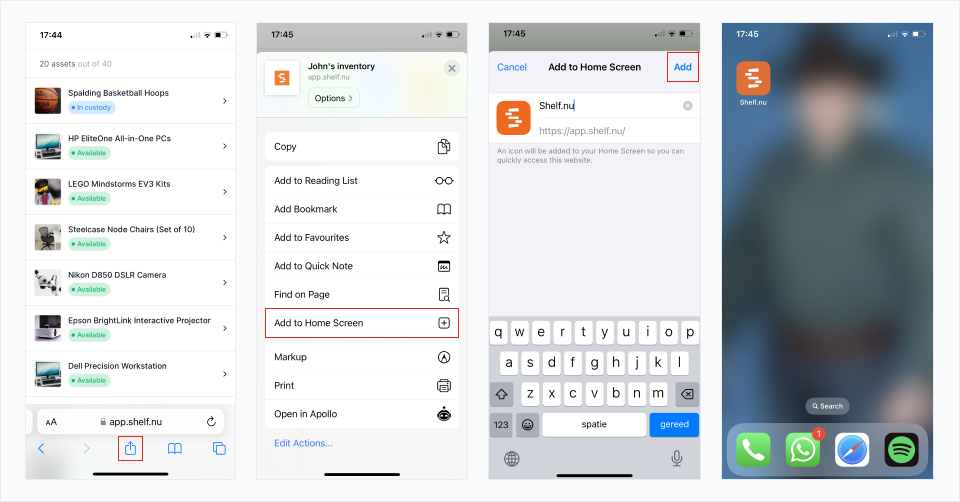
- Log in with your Shelf account
- Tap the Actions icon at the bottom
- Choose Add to Home Screen
- Confirm by clicking Add and naming the app
- Shelf appears on your Home Screen
Ready to try Shelf?
Put what you're learning into practice. Free plan available — no credit card required.