

Change Asset Label Information (Show QR ID or Sequential ID)
Learn how to customize QR label displays in Shelf by choosing between unique QR code identifiers or sequential asset numbers (SAM IDs) to match your organization's workflow.
Managing large inventories requires effective asset identification methods. Teams can choose between Shelf's automatically-generated unique QR code identifiers or sequential asset numbers following patterns like SAM-0001. The QR Code Display customization feature gives you the flexibility to choose which identifier appears on your QR labels, enabling organizations to work exactly as their teams think about assets.
Understanding Your Options
Two choices exist for QR label identifiers:

QR Code ID (Default)
Unique identifiers automatically generated by Shelf, such as clm123abc456def. These work well for digital-first workflows prioritizing scanning over manual reference.
Best for:
- Teams using scanning for asset lookup
- Organizations without sequential number requirements
- Workflows relying primarily on digital tracking
Sequential Asset Number (SAM ID)
Ordered, human-readable numbers like SAM-0001, SAM-0002 following predictable patterns. These facilitate easy reference in conversations, reports, and physical documentation.
 Best for:
- Schools and institutions with numbered equipment
- Organizations transitioning from manual tracking
- Teams referencing asset numbers verbally
- Combined digital and physical asset management workflows
Setting Up Your QR Code Display Preference
Step 1: Navigate to General Settings
- Click workspace name in top navigation
- Select "Settings" from dropdown
- Choose "General" from settings sidebar
Step 2: Find QR Code Display Options
Scroll to "QR Code Display" section showing two options:
- QR Code ID
- Sequential Asset Number (SAM ID)
Step 3: Make Your Selection
Choose your preferred option and click "Save changes."
What Changes When You Switch
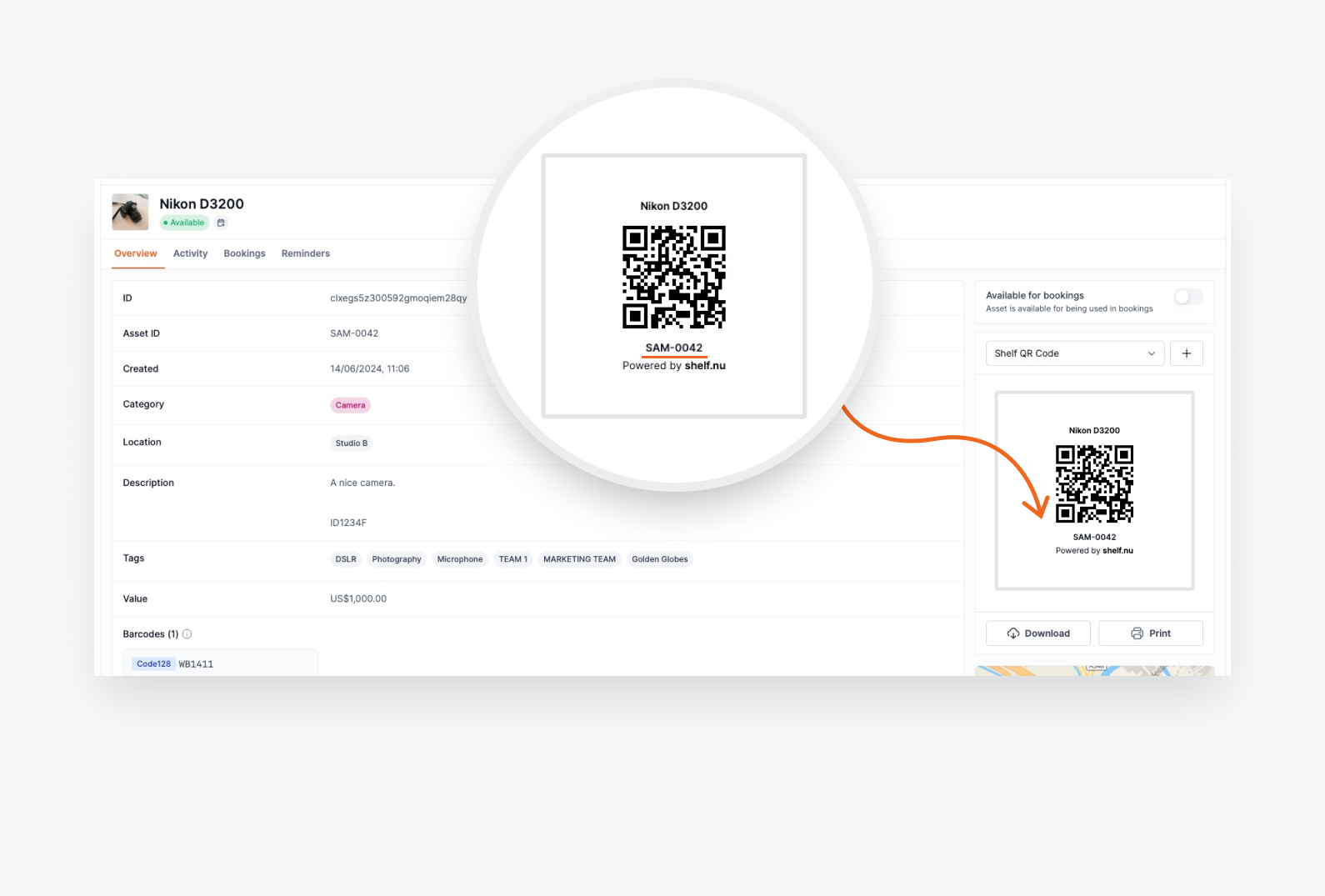
QR Label Display
Selected preference affects individual and batch label displays:
- QR Code ID shows:
clm123abc456def - SAM ID shows:
SAM-0001
Bulk Download Filenames
Downloaded files follow your preference:
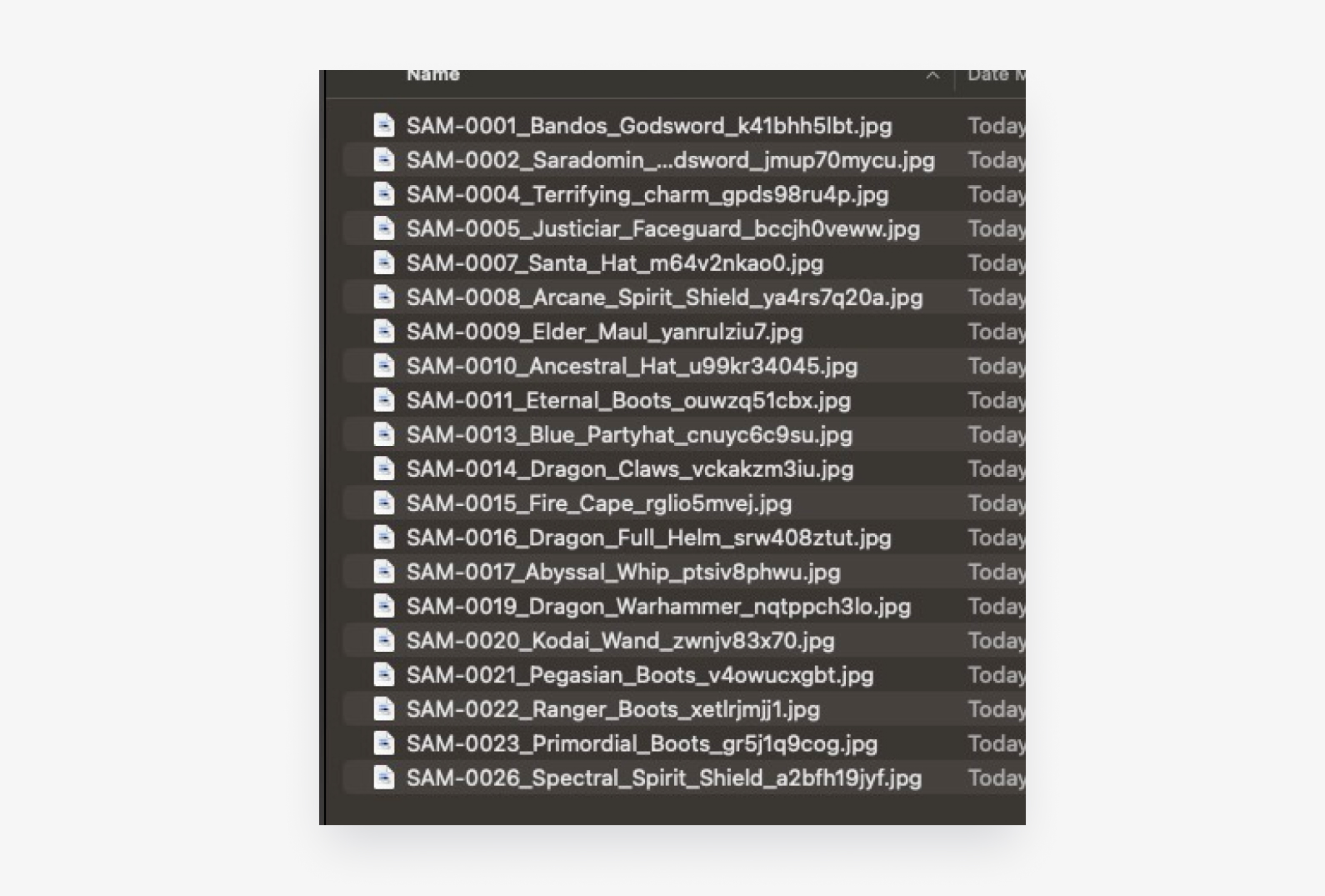
- QR Code ID:
Laptop_Dell_clm123abc456def.jpg - SAM ID:
SAM-0001_Laptop_Dell_clm123abc456def.jpg
Real-World Use Cases
School Equipment Management As a school IT administrator managing hundreds of laptops, tablets, and projectors, using sequential SAM IDs means teachers can easily report issues by reference number rather than complex codes.
Corporate Asset Tracking Sequential numbering maintains continuity while gaining digital tracking benefits. Employees still reference equipment the same way they always have, but now the organization has comprehensive digital records.
Inventory Audits Sequential numbers on labels enable quick verification during quarterly audits, with immediate gap identification.
Frequently Asked Questions
What happens if I switch preferences after creating assets? Existing QR codes continue functioning perfectly. Only newly viewed or downloaded labels reflect updated preferences.
Can I have some assets use QR IDs and others use SAM IDs? The setting applies workspace-wide for all new labels, though you can change preferences and download new labels as needed.
What if an asset doesn't have a SAM ID assigned? Shelf automatically falls back to QR Code ID display, ensuring working QR codes even without sequential assignments.
Do I need to re-download existing QR codes? No. Existing QR codes work unchanged. The setting only affects newly viewed or downloaded labels.
Can I change this setting multiple times? Yes. Switch between formats as often as needed, adapting to evolving workflow requirements.
Getting Started
Access General Settings to customize QR code display based on team preferences. Changes only affect newly viewed or downloaded labels, maintaining compatibility with existing QR codes while enabling immediate team benefits.
Ready to try Shelf?
Put what you're learning into practice. Free plan available — no credit card required.