

Advanced Asset Index: Complete Guide
The advanced asset index in Shelf provides powerful ways to view, filter, sort, and manage your assets. This guide covers all features and best practices for maximizing your asset management efficiency.
Managing Your View
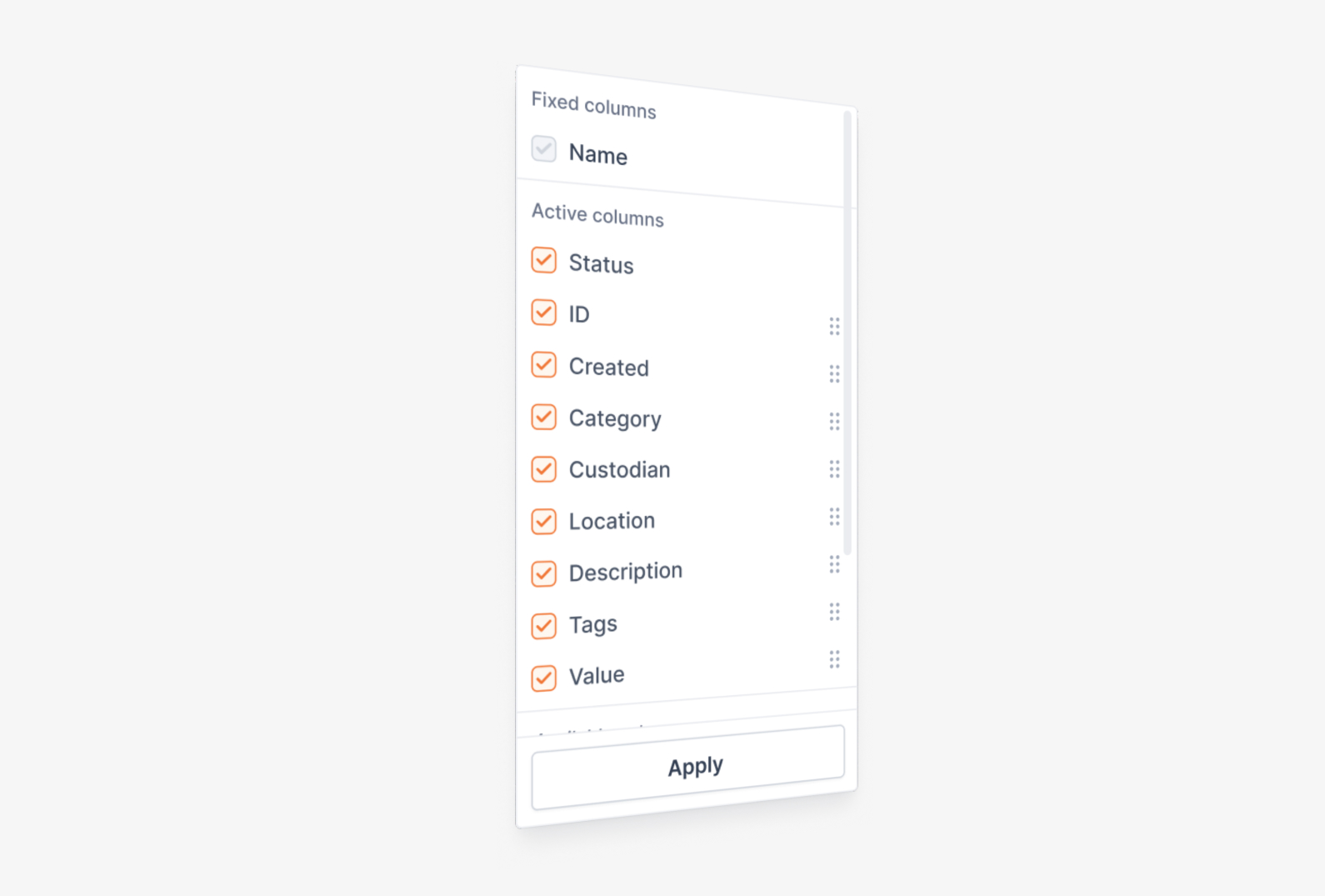
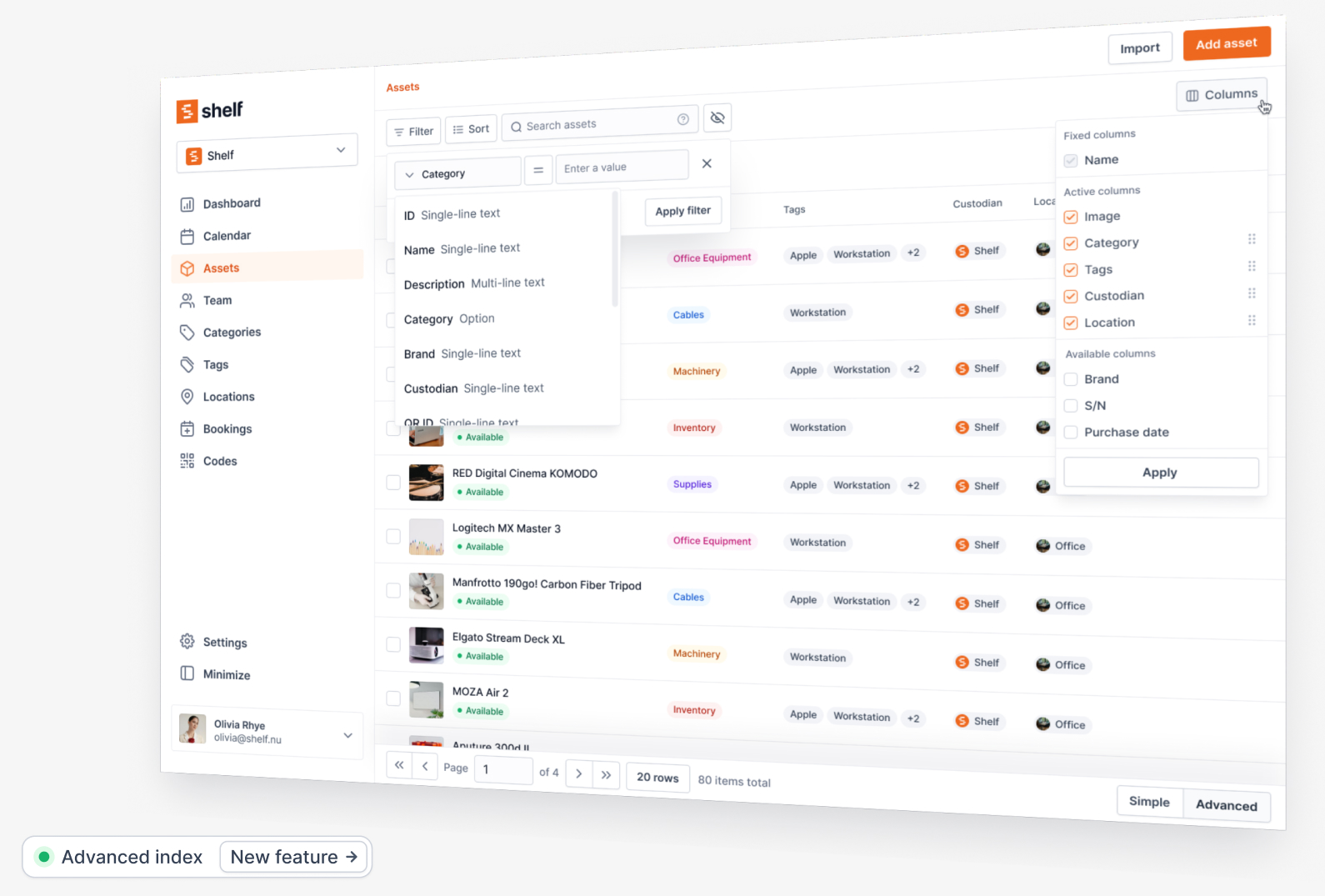
Columns Management
- Fixed column: "Name" is always visible
- Toggle any available columns including custom fields
- Use drag handles to reorder columns
- "Select all" or "Deselect all" for quick configuration
Pro tip: Show only necessary columns for your current task to maintain a clean view.
Advanced Filtering System
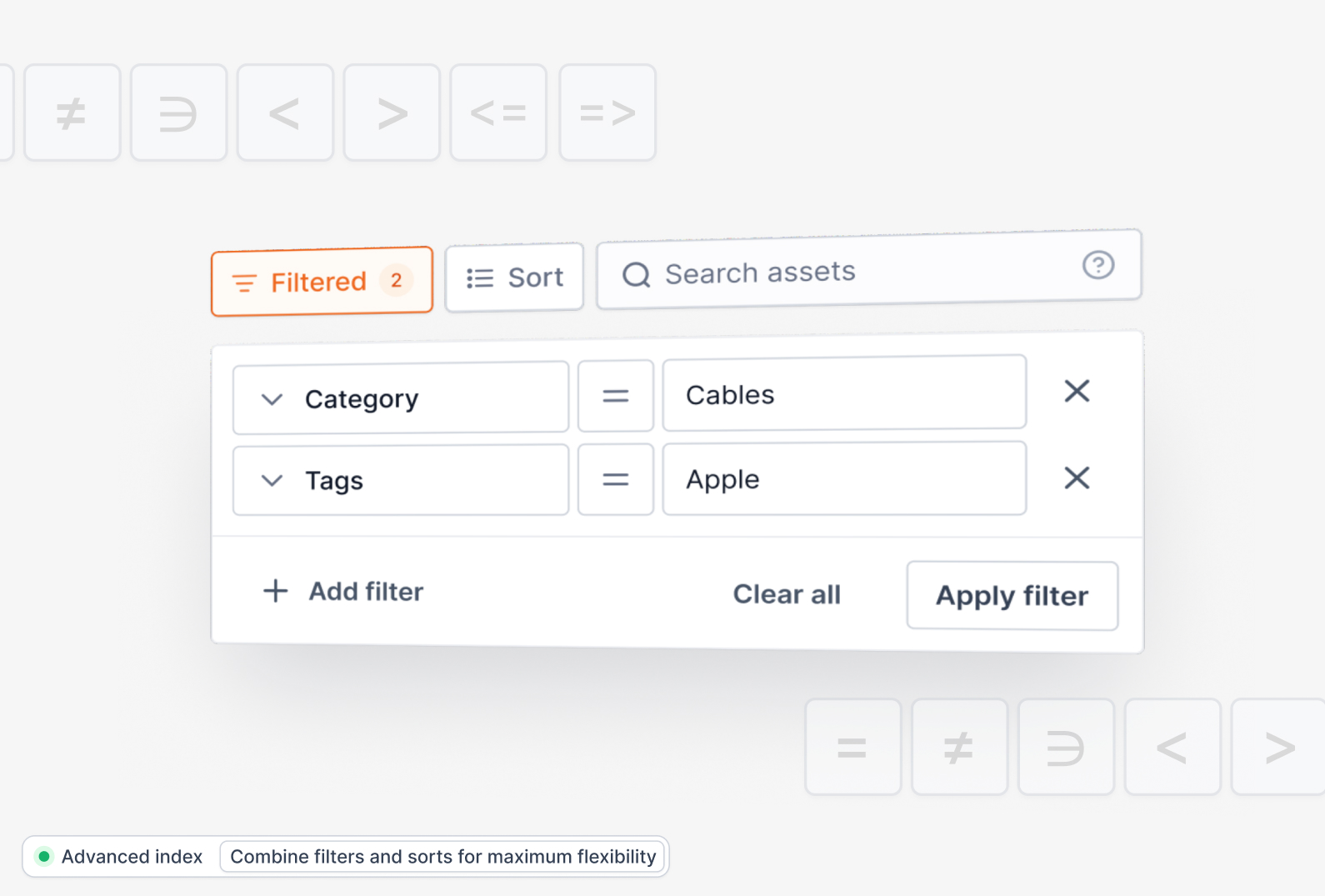
Text Fields (Name, Category, Location, etc.)
- is: Exact match (e.g.,
Location is "Server Room") - is not: Excludes exact match (e.g.,
Category is not "Computers") - contains: Partial match (e.g.,
Description contains "wireless") - matches any: Multiple exact matches
- contains any: Multiple partial matches
Number Fields (Value)
- is: Exact value (e.g.,
Value is 1200) - is not: Excludes value
- greater than: Above value (e.g.,
Value greater than 5000) - less than: Below value
- greater or equal: Minimum value
- lower or equal: Maximum value
- between: Value range (e.g.,
Value between 1000 and 5000)
Date Fields (Created At, Purchase Date, etc.)
- is: Specific date
- is not: Exclude date
- before: Before date
- after: After date
- between: Date range
- in dates: Multiple specific dates
Boolean Fields (Available to Book, Is Portable)
- is: Yes/No selection
Tags
- contains: Has specific tag
- contains all: Has all specified tags
- contains any: Has any of specified tags
Natural and Advanced Sorting
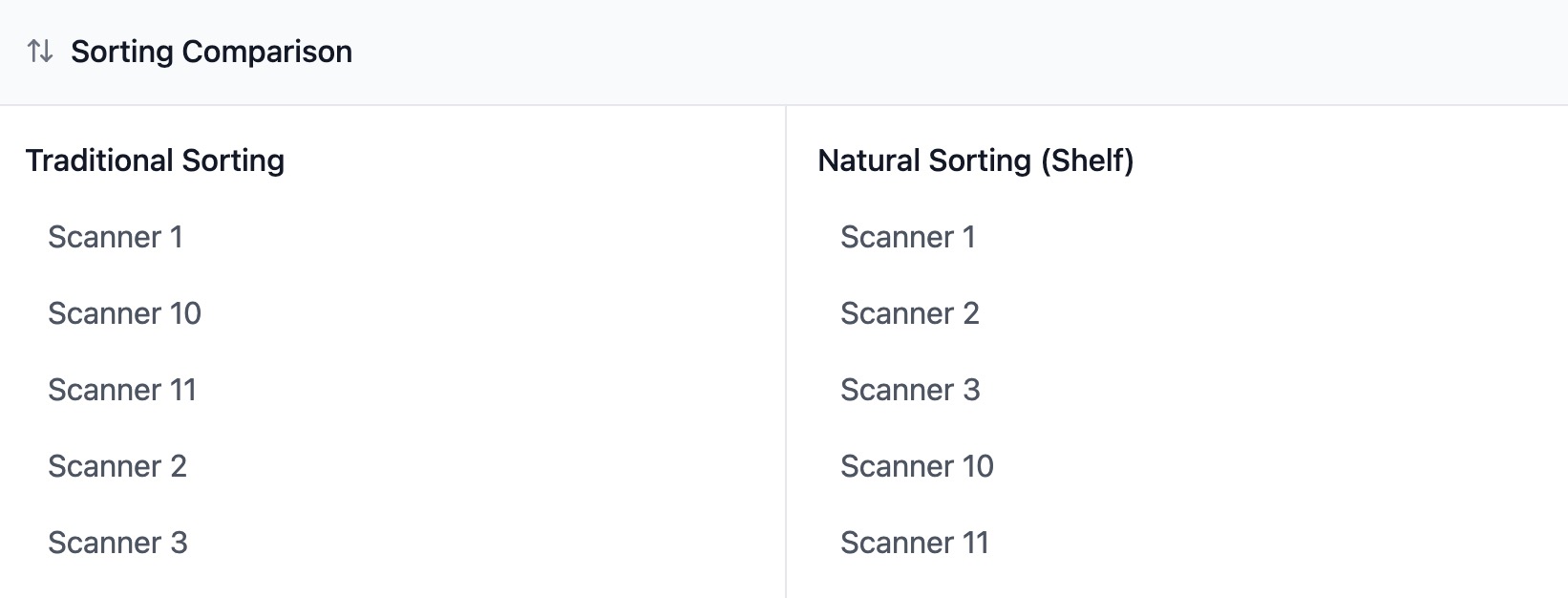
Natural Sorting
The system uses natural sorting for logical number ordering:
Traditional Sorting:
- Scanner 1
- Scanner 10
- Scanner 11
- Scanner 2
- Scanner 3
Natural Sorting (Shelf):
- Scanner 1
- Scanner 2
- Scanner 3
- Scanner 10
- Scanner 11
Benefits:
- Numbers sort logically within names
- Equipment series appear in proper order
- Serial numbers sort correctly
- Case-insensitive ordering
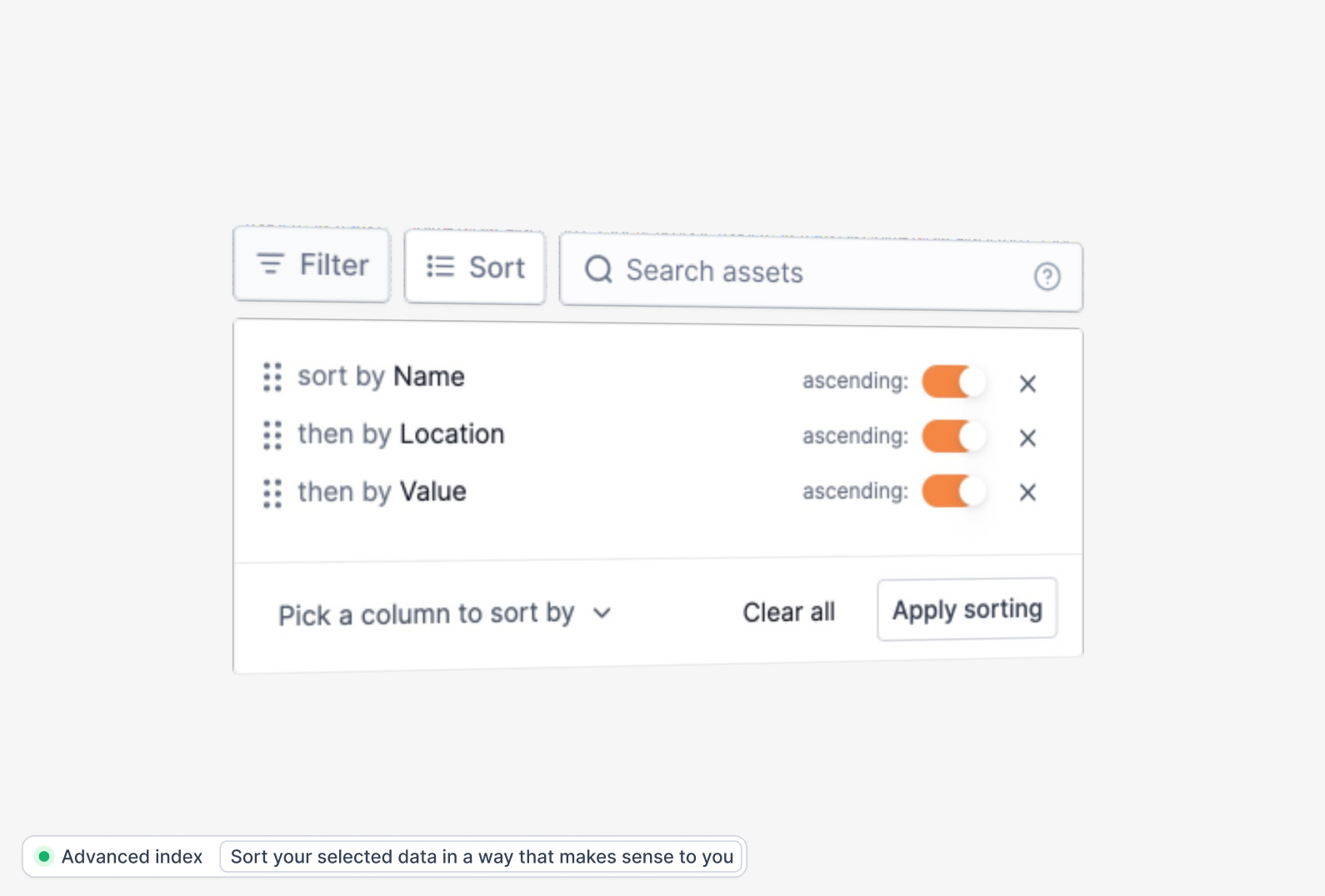
Multi-Field (Stacked) Sorting
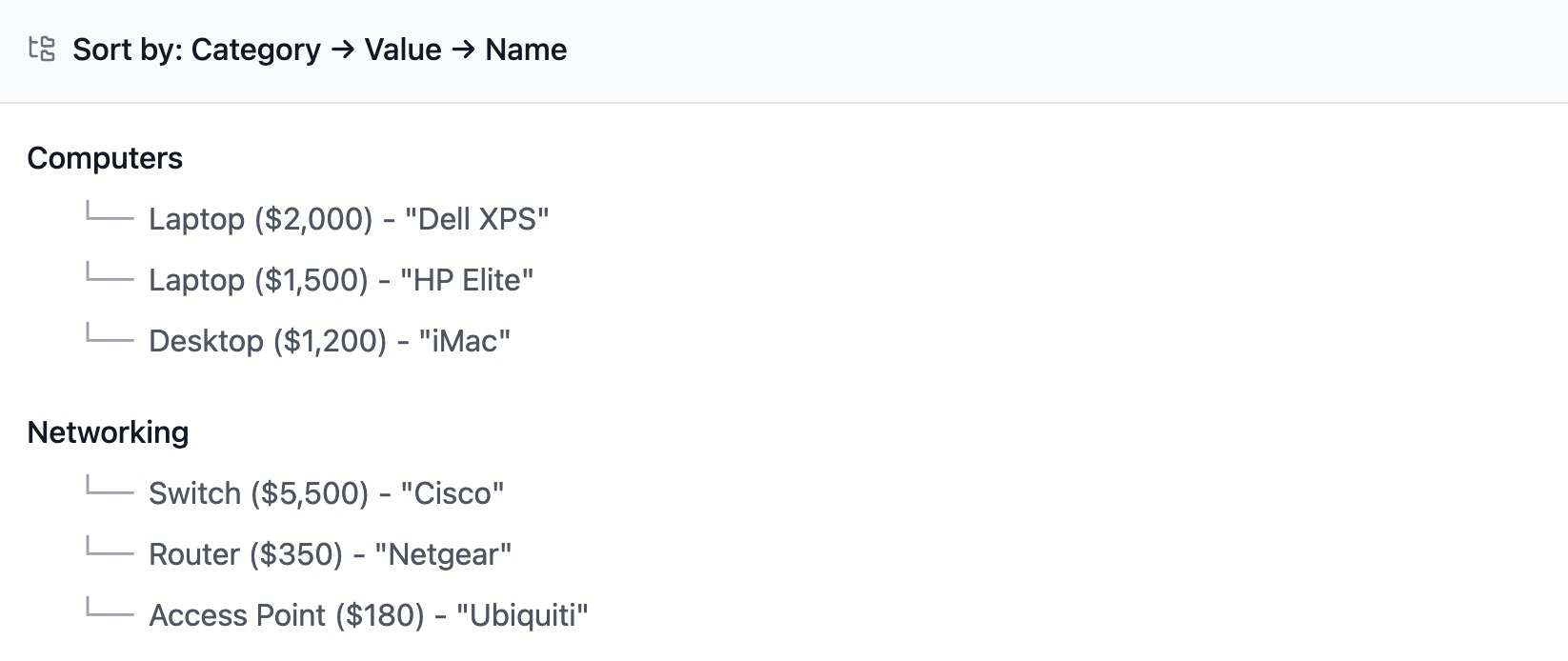
You can build complex sort orders:
- Primary sort sets main grouping
- Secondary sort organizes within groups
- Additional sorts provide final ordering
Example: Sort by Category, then Value, then Name:
Computers
  - Laptop ($2,000) - "Dell XPS"
  - Laptop ($1,500) - "HP Elite"
  - Desktop ($1,200) - "iMac"

Networking
  - Switch ($5,500) - "Cisco"
  - Router ($350) - "Netgear"
  - Access Point ($180) - "Ubiquiti"
Batch Actions

Custody Management
- Release custody from multiple assets
- Assign new custodian to selection
- Perfect for employee offboarding/onboarding
Tag Operations
- Add tags to multiple assets
- Remove tags from selection
- Great for categorization updates
Location and Category Updates
- Move multiple assets to new location
- Update category for selected assets
- Useful for department reorganization
Availability Control
- Mark multiple assets as available/unavailable
- Helpful for maintenance periods
Export Capabilities
Export creates a CSV file containing:
- All assets matching your current filters
- All columns currently visible in your index
- Perfect for:
- Inventory reports
- Audit preparation
- Budget planning
- Maintenance schedules
Practical Examples

Equipment Relocation
- Filter: Location is "Floor 2"
- Select all filtered assets
- Batch action: Update location to "Floor 3"
- Export selection for move documentation
Maintenance Planning
- Filter: Last maintenance before 2023-12-31
- Sort by: Category, Location
- Add tag "maintenance-due-2024"
- Export for service scheduling
Value Assessment
- Filter: Value greater than 5000
- Sort by: Category, Value (descending)
- Export selection for insurance update
Department Transfer
- Filter: Custody is "Marketing Team"
- Sort by: Category, Name
- Batch update: New location and custody
- Export for handover documentation
Best Practices

Efficient Filtering
- Start with broad filters
- Add specific filters to narrow results
- Use date ranges for time-sensitive queries
- Combine filters for precise results
Column Management
- Show only necessary columns
- Order by importance left to right
- Add all needed columns before exporting
Sorting Strategy
- Choose primary sort for main grouping
- Add supporting sorts for subgroups
- Use Name as final sort for easy scanning
Batch Operations
- Filter precisely before selecting
- Verify selection before applying actions
- Export before and after major changes
- Use consistent tag naming for tracking
Tips and Tricks
- Use
containsfor flexible text matching - Combine date and value filters for precise queries
- Export filtered views for reporting
- Use tags for temporary grouping
- Regular column setup saves time
- Stack sorts for logical grouping
- Use natural sorting for numbered items
- Export before batch updates for backup
Troubleshooting
No Results?
- Check filter spelling
- Try broader criteria
- Verify date formats (YYYY-MM-DD)
- Remove some filters temporarily
Too Many Results?
- Add more specific filters
- Combine multiple filter types
- Use exact matches instead of contains
- Add date ranges to narrow scope
Performance Issues?
- Reduce visible columns
- Remove unused filters
- Clear filters after use
- Export large datasets instead of viewing
Export Issues?
- Verify column selection
- Check filter combinations
- Ensure reasonable dataset size
- Confirm file permissions
Need more help? Contact support at hello@shelf.nu.
Ready to try Shelf?
Put what you're learning into practice. Free plan available — no credit card required.